News ·
Now you can save on your computer too — the web version, the Chrome extension and file saving
A web version with nothing to install, a Chrome extension that saves what you're reading with one shortcut, and saving for photos, PDFs and document files. With the same account, your phone and computer show the same knowledge.
1234asdf started as an app for saving articles on your phone with one tap on Share. In November, we added a web version, a Chrome extension and file saving, one after another, so that what you read on your computer ends up in the same place.
A web version with nothing to install
Since November 5, you can open app.1234asdf.com in a browser on your computer and sign in with “Continue with Google” to start right away. With the same account as the Android app, everything you saved is there, and on a wide screen you can read the list and an article side by side.
Photos, PDFs and document files
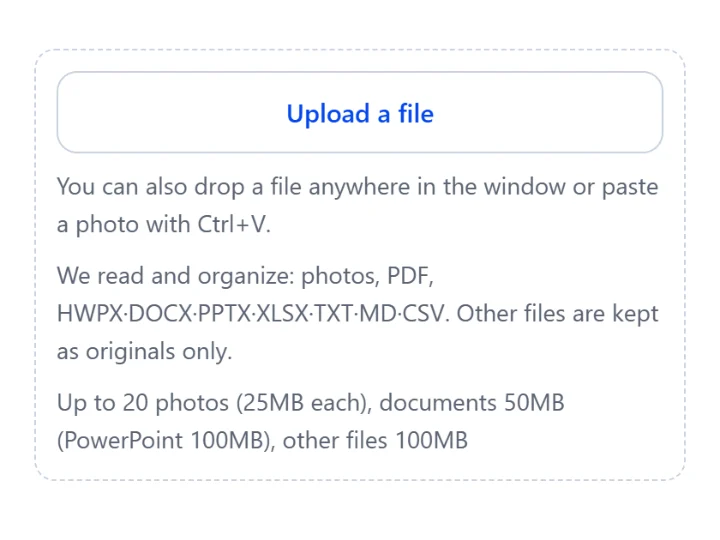
- Since November 11, you can save photos and PDFs. 1234asdf reads the words in your photos and the text of your PDFs, organizes them, and keeps the originals as they are. On Android, this arrived with the November 13 release.
- Since November 15, the web version also saves document files. It reads and organizes HWPX, Word (DOCX), PowerPoint (PPTX), Excel (XLSX), TXT, MD and CSV, and keeps other formats as the original file only.
A Chrome extension that saves with one shortcut
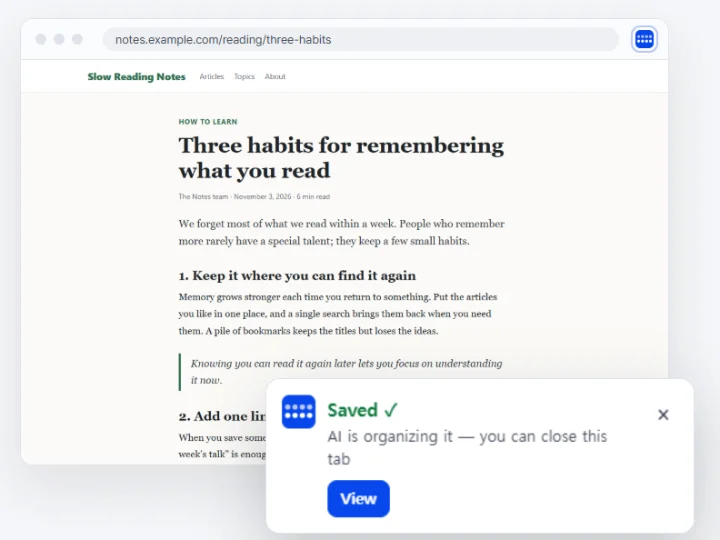
On November 17, we published the Chrome extension “Save to 1234asdf” on the Chrome Web Store. Press Left Alt+S (Control+S on a Mac) on the article you're reading, a card appears at the bottom right, and the page is saved a moment later.
- It saves the text you see on screen too, so even posts you can only see when signed in get organized.
- On known mail, banking, payment and admin pages, it sends only the address.
- After saving, the organizing carries on even if you close the tab.
- The extension can only save. It can't read the knowledge you've saved.
The same knowledge on your phone and computer
Wherever you save, the same account brings it all together. Keep reading on your computer what you saved on your phone, and find on your phone the files you saved on your computer. The user guide chapters “Use it on a computer” and “Save with the Chrome extension” walk you through the steps.