How-to ·
What is MCP? How to let AI apps read your own data
MCP is an open standard that lets AI apps read data held in other services. Using 1234asdf as an example, we walk through how the connection works and what to check before you connect.
MCP (Model Context Protocol) is an open standard that connects AI apps to other services, so they can read the data there or use those services' features. Anthropic introduced it in late 2024, and many AI apps and developer tools support it today. Put simply, it's a way of connecting that gives an AI app the go-ahead: “You can read this service's data.”
Why would you need it?
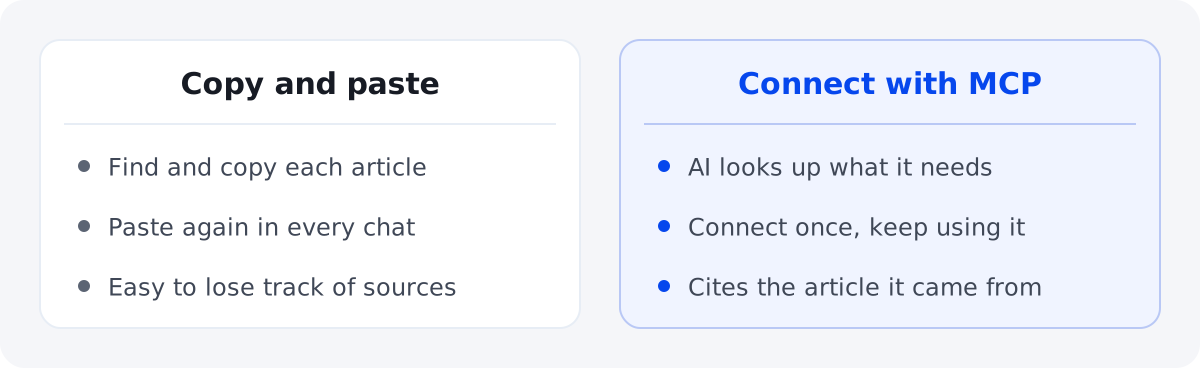
AI apps know a lot about the world in general, but they don't know the things you've read and collected. So until now, you had to find the article you needed, copy it and paste it into the chat. Once you connect over MCP, the AI can look in that service itself and read what it needs, when it needs it, and tell you where it came from, too.
How does it connect?
- MCP server: the doorway on the side of the service that holds the data. 1234asdf runs one at https://mcp.1234asdf.com/mcp.
- AI app: you enter that address where the app adds a connector (an MCP server).
- Sign-in and permission: the first time, you sign in with your account for that service and allow the connection. You aren't handing your password to the AI app; the service confirms the connection itself.
Three things to check before you connect
- What will it read? Services differ in how much they share over MCP. 1234asdf shares only your knowledge (the organized sentences and your notes) and short evidence for each sentence. Sensitive spaces, the Trash and full original text are never sent.
- Does it only read, or can it change things too? Some MCP servers let the AI write or delete content. 1234asdf's MCP connection only reads. It doesn't save, edit or delete anything.
- How do you disconnect? You disconnect in that AI app's connector settings. Chats you've already had may stay in that app, and what's shared follows the privacy policy of the AI company you connect.
Try it with 1234asdf
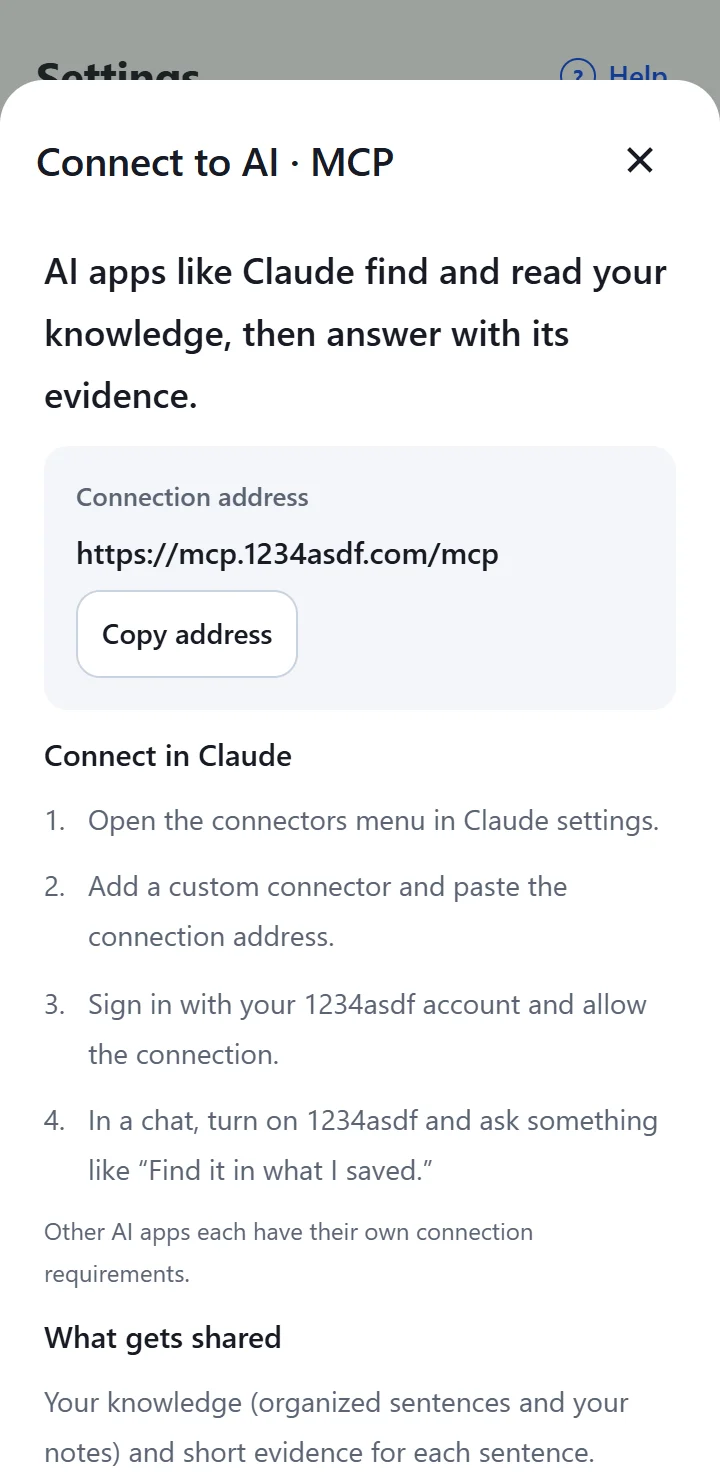
- In the 1234asdf app, go to “Settings → Connect to AI · MCP” and tap “Copy address”.
- Paste it where your AI app adds a connector (an MCP server). In Claude, add a custom connector from the connectors menu in settings. In ChatGPT, add a custom MCP server on the Plugins page on the web on a computer.
- Sign in with your 1234asdf account and allow the connection.
- In a chat, turn on 1234asdf and ask something like “Find it in what I saved.”
Which AI apps does it work with?
The apps we've confirmed the connection with ourselves are Claude (November 5, 2026) and ChatGPT (November 22, 2026). If another AI app lets you enter an MCP server address yourself, you can try the same address there, but connection requirements such as plans and menus differ from app to app. As we confirm the connection with more apps, we'll add them to the “AI connection” page one by one.
As convenient as MCP connections are, it's best to know what one will read before you turn it on. Before you allow a connection, first check what the service shares and whether it only reads.