How-to ·
How to check the evidence behind PDF and Hangul (HWPX) summaries
Save a long PDF or a Hangul or Word document to 1234asdf, and it organizes the key points so you can check right away which part of the document each sentence came from. The original file is kept as it is.
With long documents like reports, official letters and notices, a summary is welcome. But if you go by the summary alone, it's hard to tell whether something that isn't in the original has slipped in, and you end up reading the whole thing from the start anyway. 1234asdf reads the document and organizes the key points, attaching evidence to every sentence, so you can check just the parts you need against the original.
Which documents can you save?
- Android app: you can save photos and PDFs. In “All knowledge”, tap “+ Save” and choose “Photos & PDF”.
- Web version on a computer (app.1234asdf.com): on top of photos and PDFs, it also reads and organizes Hangul (HWPX), Word (DOCX), PowerPoint (PPTX), Excel (XLSX), TXT, MD and CSV files.
- Other formats, such as older Hangul HWP files, are kept as the original only, and we'll let you know.
Saving a document on a computer
- In the web version, click “+ Save” and choose “Files”.
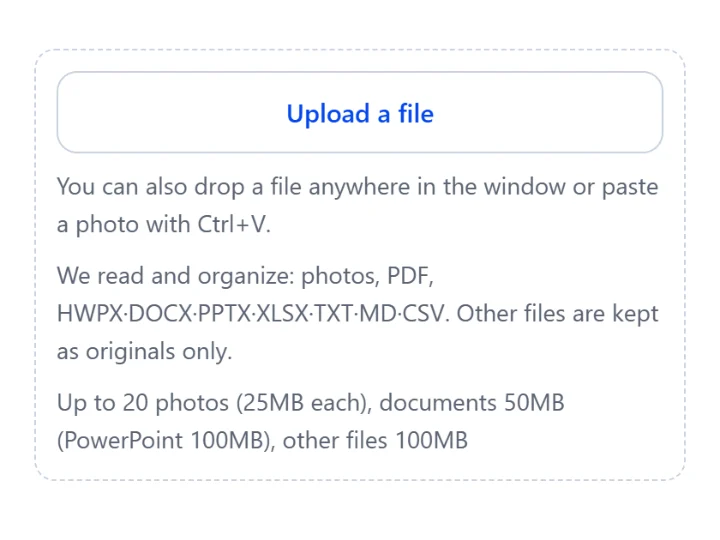
- Click “Upload a file” or drop the file anywhere in the window. Documents are saved one at a time.
- When you pick a document file, you'll see “We will read and organize it” under it for formats we read, or “Kept as the original only (this format cannot be read yet)” for other formats. The save button changes to “Capture file” or “Save PDF” to match what you picked, so click that button. The organizing carries on in the background.
Check the evidence for each sentence
Tap or click an organized key sentence, and the “From the original” panel opens. For a PDF, it also shows which page the sentence came from, and for photos, which photo's text it came from.
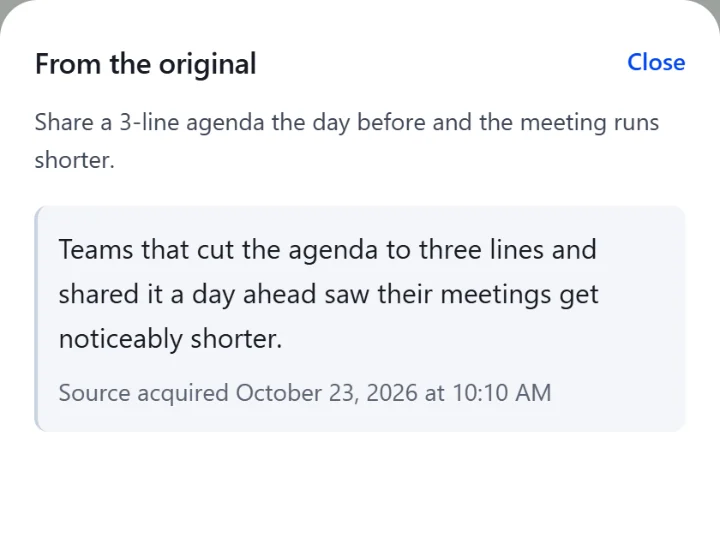
- For documents such as Hangul and Word files, “Text read from the document” shows the text taken out of the file. Fonts and layout differ from the original.
- If a long document can't be read in full, you'll see “Partly read by AI” along with how much was read (for example “Read 30 of 40 slides”).
- The original file is kept exactly as it was. You can get it from the attachments at the top of the knowledge with “Download original” (“Save original” for photos and PDFs opened in the app).
When only the original is kept, or only part is read
Password-protected documents and protected (DRM) or distribution-only documents aren't read; only the original is kept. For a damaged file, only the parts that can be read are organized and you'll see “Partly read by AI · Part of the file is damaged, so that part could not be read”; if nothing can be read, only the original is kept. Even if a file contains macros, 1234asdf never runs them. Programs, installers, and audio and video files can't be saved.
If you're relying on a document for an important decision about a contract, money or your health, tap a key sentence to see its evidence, and if needed, open the original file to check once more.