Use your knowledge in AI apps
Connect 1234asdf to an AI app and get answers from the knowledge you saved. Connecting takes 3 minutes.
Last updated
What you need
A few saved articles and an AI app that lets you add an MCP server (a connector). MCP (Model Context Protocol) is an open standard that lets AI apps read outside material safely. The apps we have connected ourselves are Claude (November 5, 2026) and ChatGPT (November 22, 2026). Other AI apps each have their own requirements, such as plans and menus.
For the connection address and the steps in Claude and ChatGPT, see AI connection (MCP) ›
Step by step
In the 1234asdf app, go to “Settings → Connect to AI · MCP” and tap “Copy address”. The address is also in the AI connection guide above.
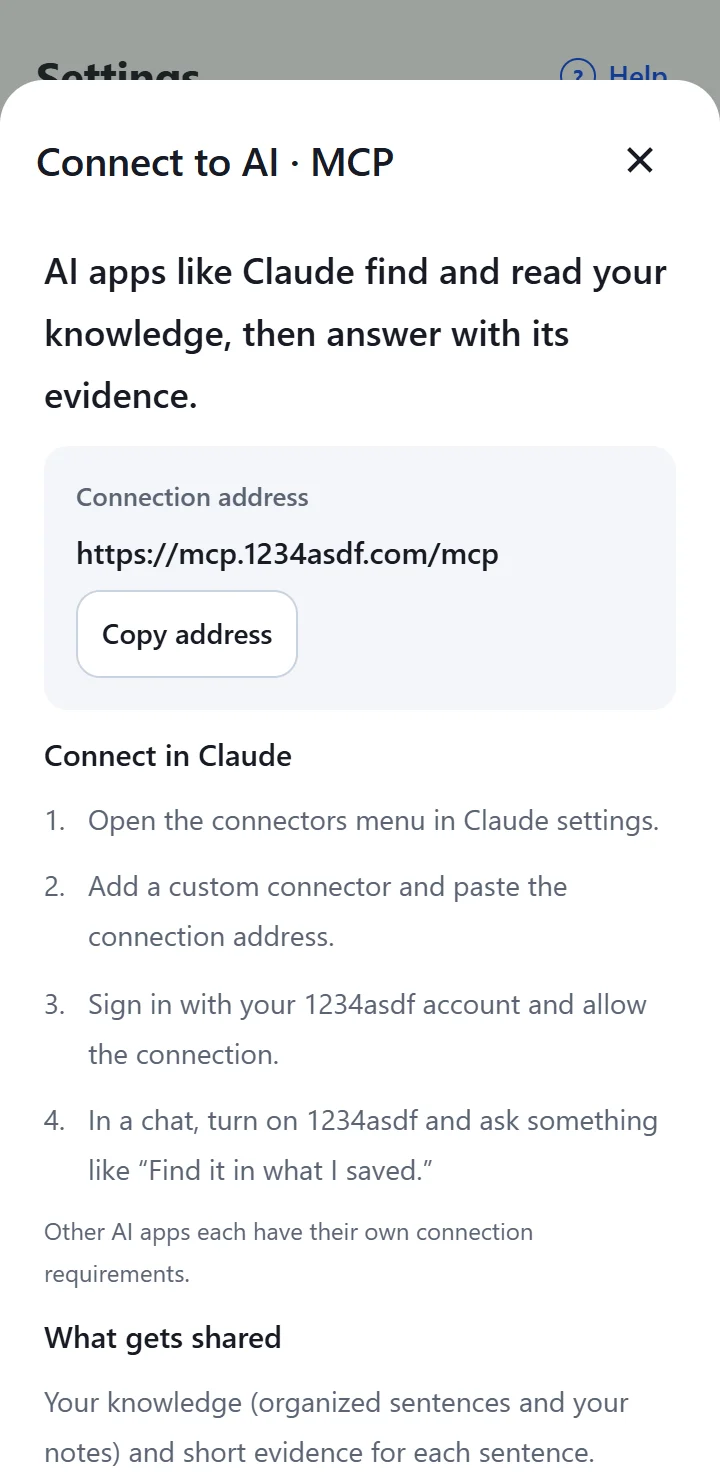
Paste it where your AI app adds a connector (an MCP server). In Claude, add a custom connector from the connectors menu in settings. In ChatGPT, add a custom MCP server (Add custom MCP server) on the Plugins page on the web on a computer.
Sign in with your 1234asdf account and allow the connection.
In a chat, turn on 1234asdf (in ChatGPT, type @ and pick 1234asdf) and ask something like “Find it in what I saved.”
Ask like this
Say “in what I saved” or “from my saved recipes”, and the AI looks in 1234asdf first. If you just ask, it may answer from general knowledge without looking at yours. Words or a title from the article help it find the right one.
- “I've got chicken thighs and a lemon in the fridge. What can I make from my saved recipes?”
- “Draft an announcement for tomorrow's 10 a.m. team meeting. Follow the meeting article I saved.”
- “I want shorter team meetings. Can you pull together what I've saved on that?”
What gets shared
- Only your knowledge (organized sentences and your notes) and short evidence for each sentence. Sensitive spaces, the Trash and full original text are never sent.
- AI apps can only read. They don't save, edit or delete anything, and AI results never overwrite the original text or your notes.
- What's shared follows the privacy policy of the AI company you connect. Even after you disconnect, chats that already read it may stay in that app. Disconnect in that AI app's connector settings.
When it works, you'll see this
The AI answers from your knowledge found in 1234asdf and shows which articles it read. Open a source to see that knowledge and its evidence in 1234asdf again.
If something goes wrong
Common situations
- The AI answers without looking at my knowledge
- Check that 1234asdf is turned on in the chat, and ask it to look in your knowledge, like “Find it in what I saved.”
- It doesn't find the article I want
- Ask again with words or the title from that article. Knowledge in sensitive spaces and the Trash is never sent to AI apps.
- It won't connect, or it asks me to finish signing up
- If you've never opened the 1234asdf app with this account, sign in to the 1234asdf app (the web version or the Android app) with the same account first. Then, if adding the connection didn't finish, try connecting again in your AI app. If you were already connected and got the sign-up notice, just ask again.
- It won't connect in another AI app
- Each app has its own requirements (plans, menus). The apps we have confirmed are Claude and ChatGPT. In ChatGPT, you can add it only on the web on a computer.
- I want to disconnect
- To disconnect, remove 1234asdf in that AI app's connector settings.