Save photos, PDFs and documents
Save photos and PDFs on your phone, and documents such as Hangul and Word files in the web version on your computer, then check the organized result and the original side by side. It takes 3 minutes.
Last updated
What you need
The Android app on your phone, or the web version (app.1234asdf.com) on your computer. Photos and PDFs can be saved in both; document files such as Hangul, Word, PowerPoint and Excel are saved in the web version for now.
Step by step
In the web version on your computer, click “+ Save” and choose “Files”.
Click “Upload a file” or drop the file anywhere in the window. You can also paste a photo with Ctrl+V. Photos can go several at a time; documents and other files go one at a time.
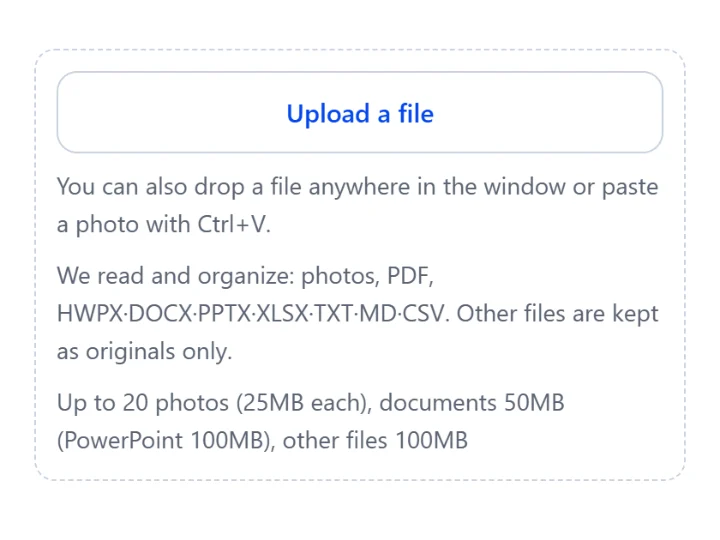
For a document or other file, you'll see “We will read and organize it” or “Kept as the original only” under it. The save button changes with what you picked: “Save 2 photos” (the number you chose), “Save PDF” or “Capture file”. Click it and you're done. The organizing carries on in the background.
Photos and PDFs on your phone
In the app's “All knowledge”, tap “+ Save” and choose “Photos & PDF”.
Use “Choose photos” for several photos, or “Choose a PDF” for one PDF. The app reads only the files you choose.
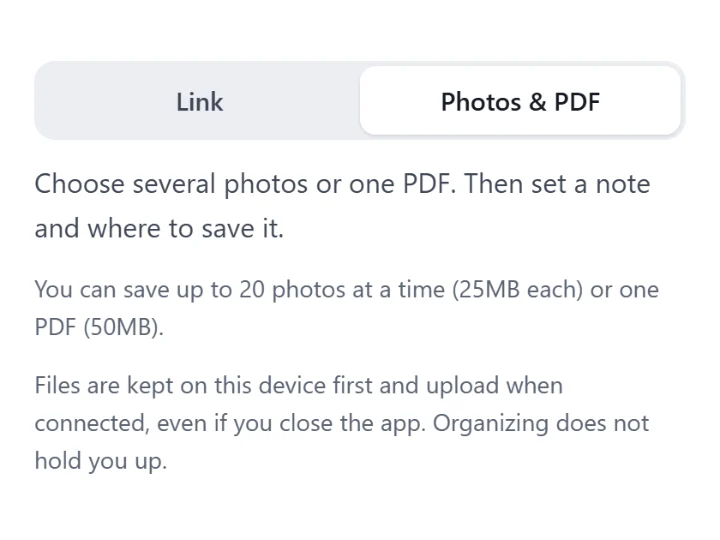
Files are kept on your phone first and upload when connected, even if you close the app. You don't have to wait for the organizing to finish.
Files it reads and organizes
Photos, PDFs and Hangul (HWPX), Word (DOCX), PowerPoint (PPTX), Excel (XLSX), TXT, MD and CSV files are read and organized. In photos it reads the text and the scene, and in PDFs the text, so when you tap a key point you can see which photo or page it came from. Other formats (such as older Hangul HWP files) are kept as the original only, and we'll let you know. Programs, installers, and audio and video files can't be saved. How much you can save at once is shown in the save window.
See the original and the text it read
- The file you saved is in the attachments at the top of the knowledge. Use “Download original” to get the original exactly as it was. For photos and PDFs opened in the app, it’s “Save original”.
- For documents, “Text read from the document” shows the text taken out of the file. Fonts and layout differ from the original.
- If a long document can't be read in full, you'll see “Partly read by AI” along with how much was read (for example “Read 30 of 40 slides”).
- Password-protected documents and protected (DRM) or distribution-only documents aren't read; only the original is kept. For a damaged file, only the parts that can be read are organized, with “Part of the file is damaged, so that part could not be read”; if nothing can be read, only the original is kept. 1234asdf never runs macros a file may contain.
When it works, you'll see this
What you saved appears at the top of “All knowledge”, and the “Organizing” label disappears once organizing is done. The original file is kept unchanged.
If something goes wrong
Common situations
- “Programs and installers cannot be captured”
- Program files aren't saved. Choose a document or a photo instead.
- “Audio and video cannot be captured yet”
- Audio and video files aren't saved. Save the article's link or a document instead.
- “Capture one file at a time, separately from photos and PDFs”
- Document files are saved one at a time. Photos can be saved several at once.
- “This file is too large”
- Split or shrink the file to fit the size shown in the save window, then save it again.
- “This document is password-protected, so its content was not read”
- Save a copy without the password and it will be read and organized.