How-to ·
How to save posts behind a sign-in with one shortcut in Chrome
If you save only the address of a company wiki page or a members-only post, you often end up with nothing but a sign-in screen later. The Chrome extension “Save to 1234asdf” also saves the text you see on screen, and organizes it.
Some posts only show up when you're signed in, like your company wiki, a newsletter you subscribe to, or a community post only members can see. If you save just the address of a post like this, reopening it later brings up a sign-in screen first, and it's hard to fetch the content from the address alone.
Save just the address, and we can't fetch the whole original
When you save just the address, 1234asdf opens that address again on its server to fetch the original. If the post needs a sign-in, the server gets only the sign-in screen, or only the beginning of the post. So we either let you know “The source could not be fetched”, or organize only the part we got and mark it “Only part of the source was collected”. We don't fill in the gaps with a plausible-looking summary.
The Chrome extension saves the text on your screen too
Add the “Save to 1234asdf” extension to Chrome on your computer, and it's a different story. The moment you save, the extension sends the text visible on screen along with the page's address, title and any text you've selected. So if you're signed in and reading a post, it can be organized from exactly what you see.
How to save
- Add “Save to 1234asdf” from the Chrome Web Store.
- On the page that opens after you install it, click “Connect”, then sign in to the web version to connect this browser.
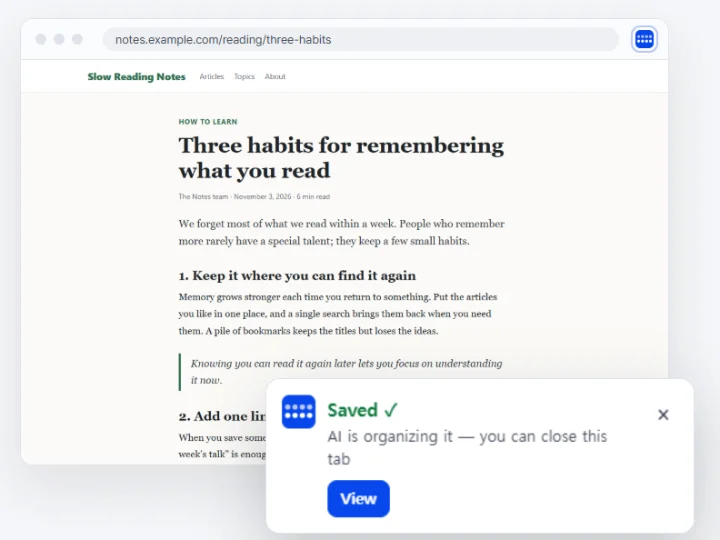
- On the post you're reading, press Left Alt+S (Control+S on a Mac). A “Saving this page” card appears at the bottom right of the screen, and it saves on its own after 3 seconds.
- To leave a one-line note, click “Note” while the card is showing. When “Saved ✓” appears, you're done. Organizing continues even if you close the tab.
Sensitive pages send the address only
- On known mail, banking, payment and admin pages, the extension sends only the address, not the page text.
- Don't save other sensitive pages either. If you don't want page text sent at all, turn off “Include page text” in the extension's popup.
- The extension can only save. It can't read the knowledge you've saved.
One more thing before you save
Don't save documents that your company's security rules say must stay inside the company. The same goes for pages that show other people's personal information. The extension sends a page's content only when you save it.
After you save
A moment later, what you saved shows up in “All knowledge” in the web version and the app. Tap or click an organized key sentence, and “From the original” shows which part of the saved page text it came from. Open it on your Android phone with the same account, and you can pick up right where you left off.