Read by kind of article
Saved articles are organized into sections that fit their kind. Find out which sections there are, and where to see the evidence and the original.
What kinds there are
- Recipe: Ingredients, Preparation, Cooking steps, Tips, Storage, Substitutions
- Procedure: Before starting, Steps, Troubleshooting, Tips
- Lists & Q&A: Items
- Measurements & use: Measurements, Usage results, Choosing, Using, Tips
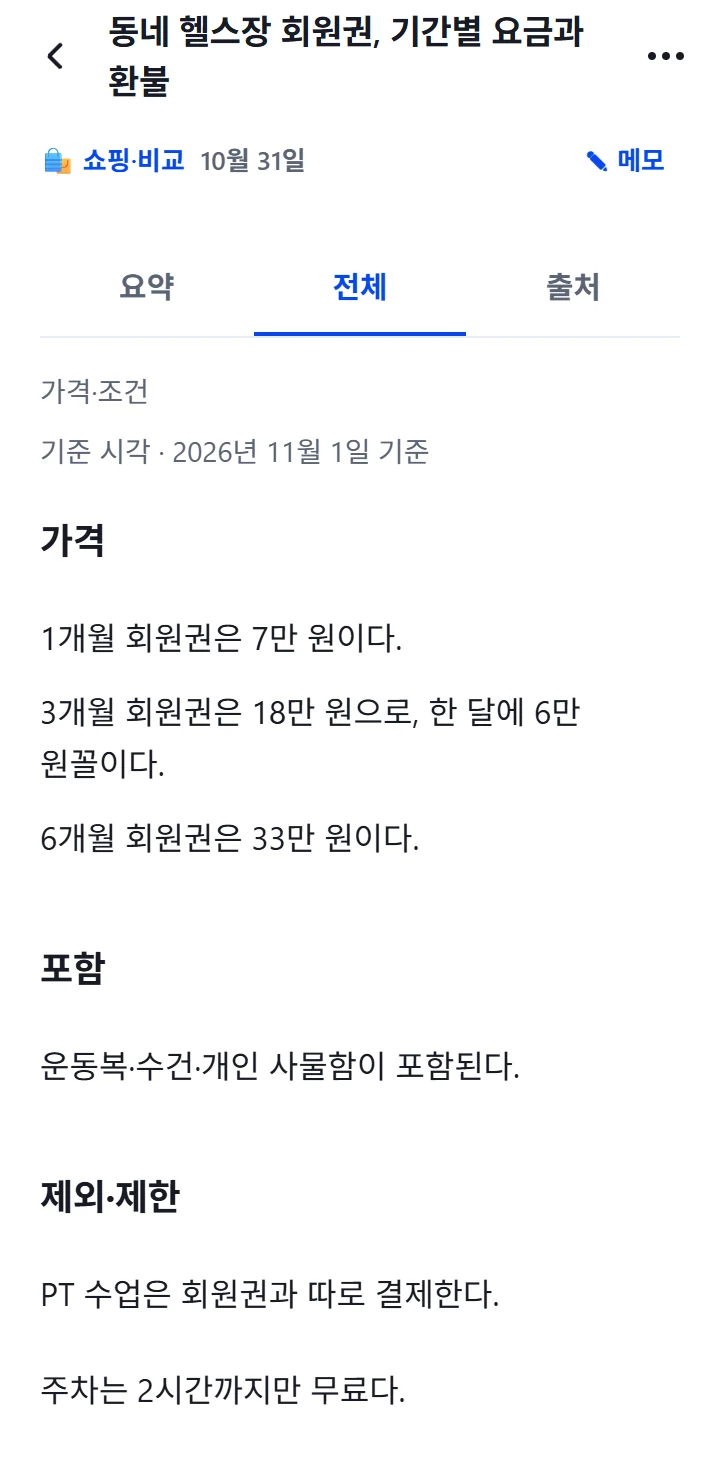
- Prices & terms: Prices; Included; Exclusions & limits; Cancellation, refunds & terms; Using
- Data & tables: Table, Key details
- Work: Information, Plot, Characters, Setting, Memorable lines
- General: Content
Every kind also has “Cautions”, “Other content” and “Original text” sections. AI reads the article and decides its kind.
Step by step
Open an article and tap the “Details” tab. The name of the article's kind and that kind's sections appear in order.
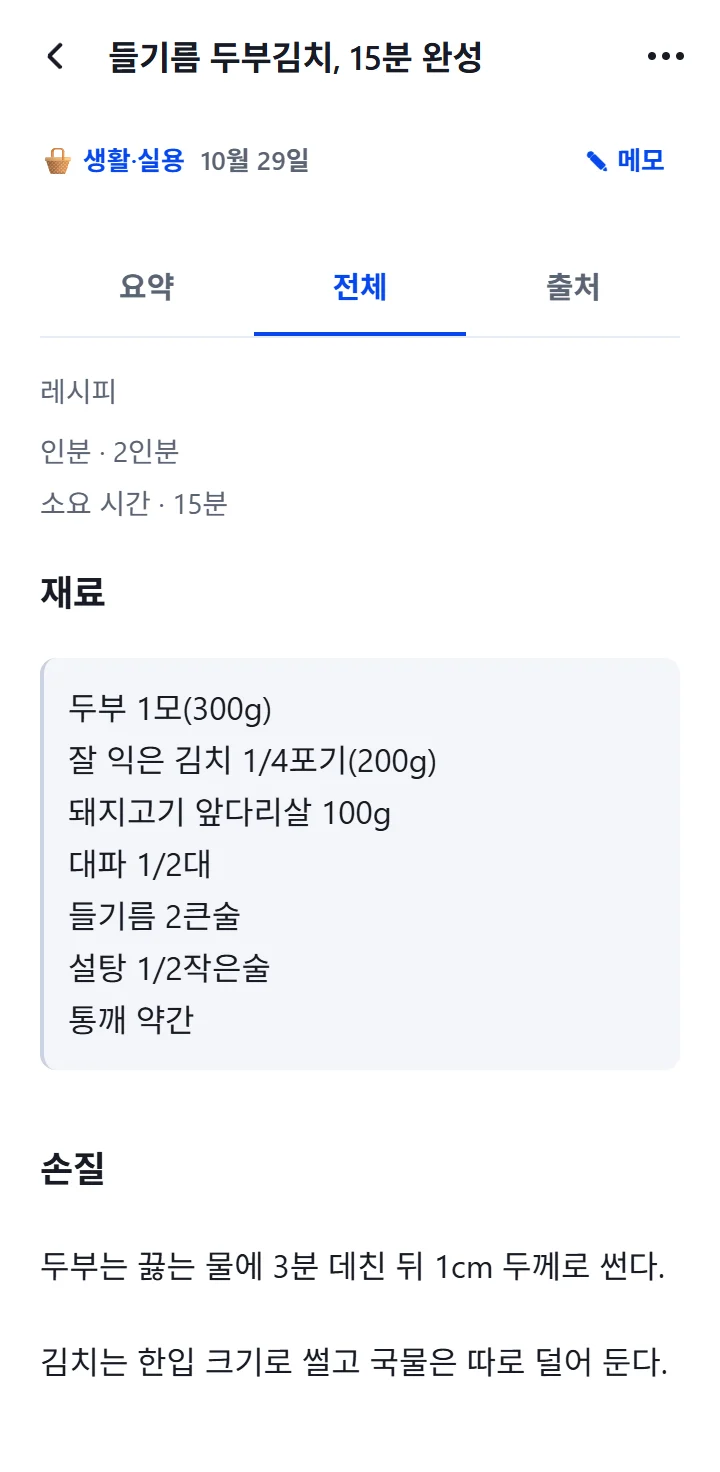
Above the sections, the conditions written in the article are shown too. For example: “Servings” and “Duration” for a recipe, or “As of” and “Deadline” for a Prices & terms article.
The “Original text” section is copied straight from the original, without AI rewriting it. If it's long, open it with “Expand full text” and close it with “Collapse”.
To see where in the original a sentence came from, tap it in “Summary” or “Details”. The “From the original” panel opens at the bottom. Open the original article from the “Sources” tab.
When it works, you'll see this
In “Details”, the sections appear in order below the name of the article's kind, and tapping a sentence shows the passage of the original it came from in the “From the original” panel.
Good to know
- In the Work kind, made-up stories such as novels are marked “Fiction”.
- Places you edited yourself are marked “Edited by me”, and they stay as they are even when the article is organized again.
- Articles that are hard to fit into a kind are organized as “General”.
If something goes wrong
Common situations
- “The deadline has passed”
- The deadline in a Prices & terms article has passed. Check the original again to see whether the same terms still apply.
- “Showing the content in a general view.”
- It couldn't be fitted into the sections for its kind, so it's shown in the general view. What you saved is unchanged.