Find
Find articles you saved before with a single word you remember. It searches titles and text, and the notes you wrote too.
Step by step
Open the “Search” tab and type a word you remember. For example: meeting, interview, budget. You can also tap a recent search or something you viewed recently to see it again right away.
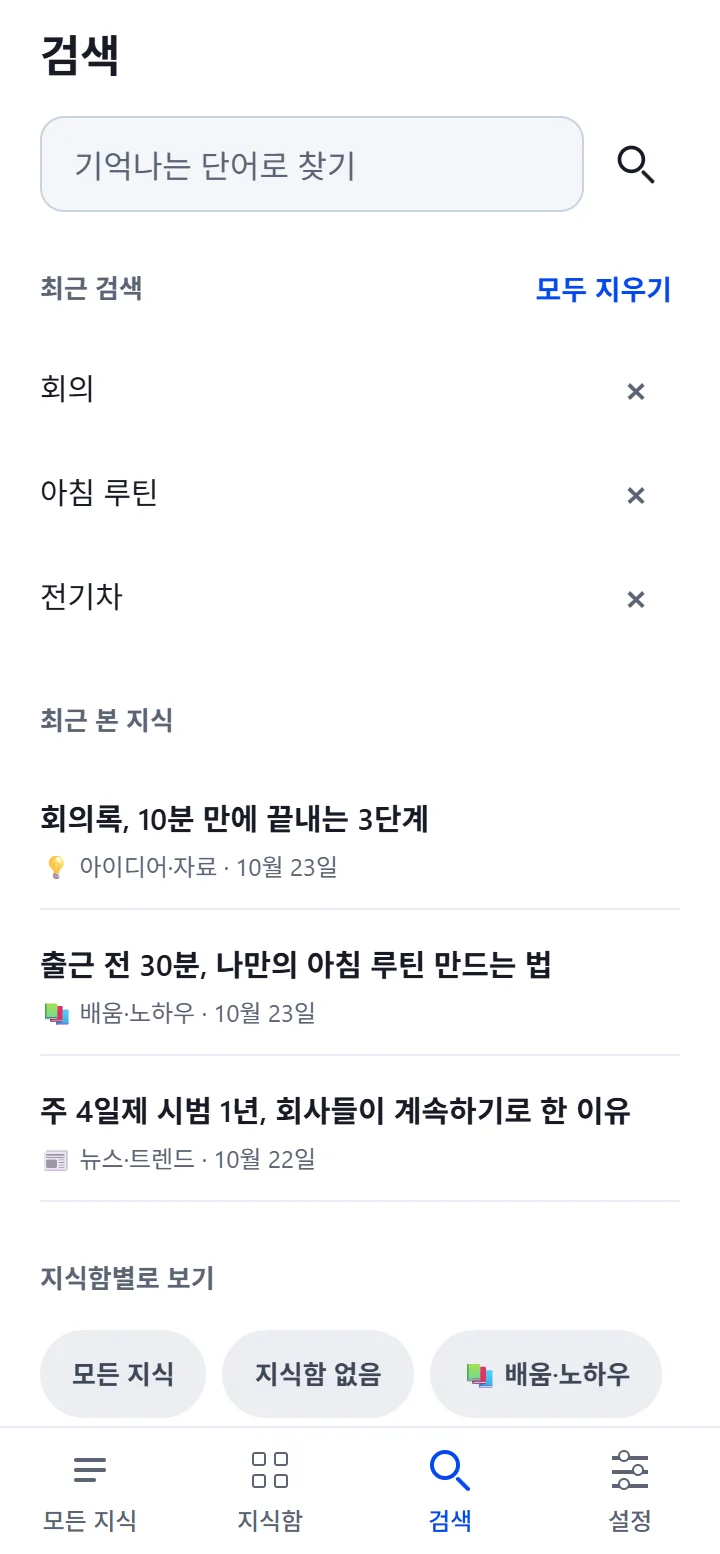
Tap the search button. Typing alone doesn't start a search.
Each result is marked with where it was found. For example: “Found in my notes”. Tap a result to go to that article's detail screen.
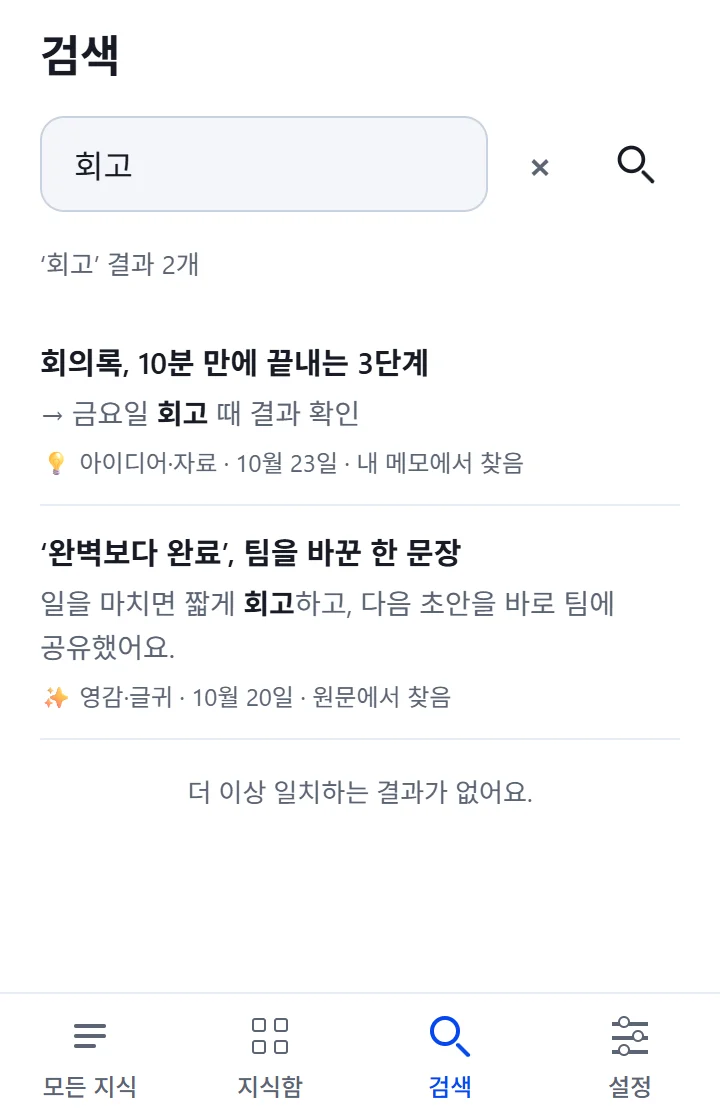
When it works, you'll see this
Below the search box, you see the number of results, like “3 results for ‘meeting’”, and at the very end, “There are no more matching results.” If there are more results, continue with “Show more” at the bottom.
If nothing is found
“No matching knowledge found” means nothing turned up for that word, not that the article doesn't exist. Try again with another word or a shorter phrase. An article you just saved can be found once it has been organized.
Without an internet connection
It searches only the copies of titles and notes kept on this device (“Search knowledge saved on the device”). A full search works once you are connected.
If something goes wrong
Common situations
- “The search failed because of a network problem”
- Check your connection and try again.
- “Could not confirm the sign-in, so the search results are hidden”
- Sign in again, then search.
- “Could not check the next results, so only those already found are shown”
- Keep using the results you have, and tap Show more once more.