Read again and edit
Find and reread the articles you saved, and change their title, note and location as you like. Even when AI organizes them, what you changed isn't overwritten.
Where to find it
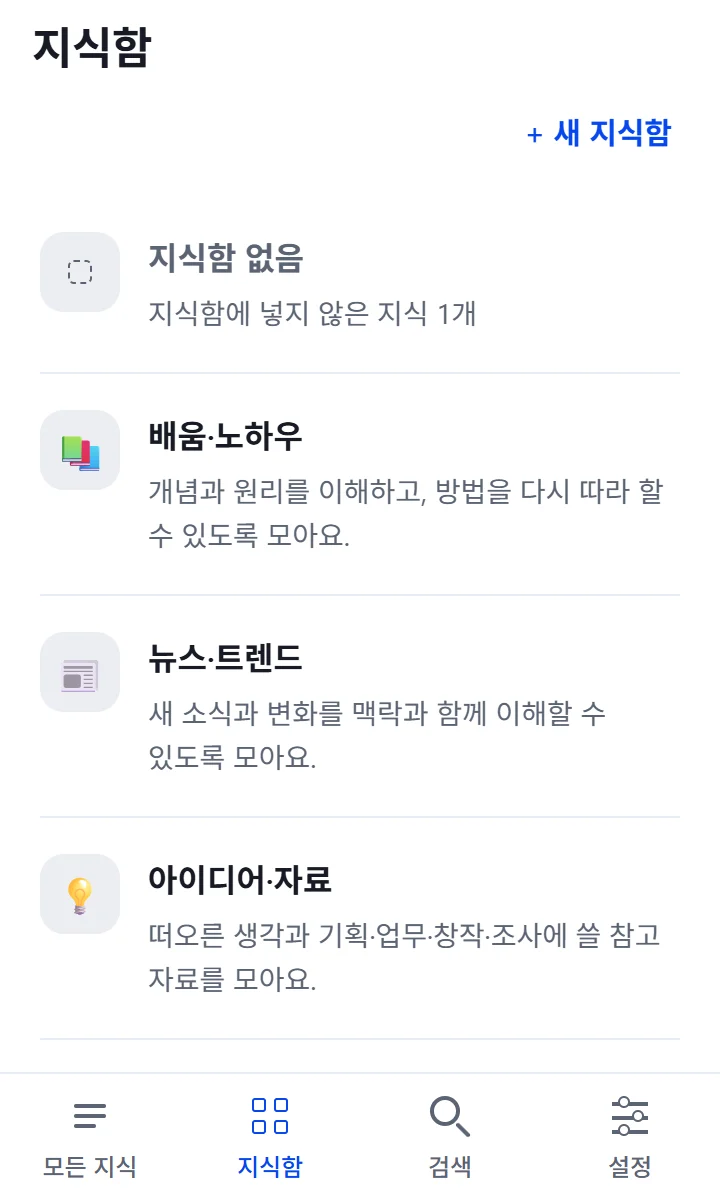
The list of spaces is in the “Spaces” tab. If some articles aren't in a space, “Not in a space” appears at the top. Articles without a space can still be found by search, and you can see everything you saved on the first screen, “All knowledge”. Tap “Space: All ▾” above the list to see just one space or “Not in a space”.
Step by step
In the “Spaces” tab, open a space or “Not in a space” and pick an article.
“Summary” comes first. To see the sections that fit the kind of article (for a recipe: Ingredients, Preparation, Cooking steps), switch to “Details”; for the original title and the link to the original, switch to the “Sources” tab. How to read the sections is in the “Read by kind of article” chapter.
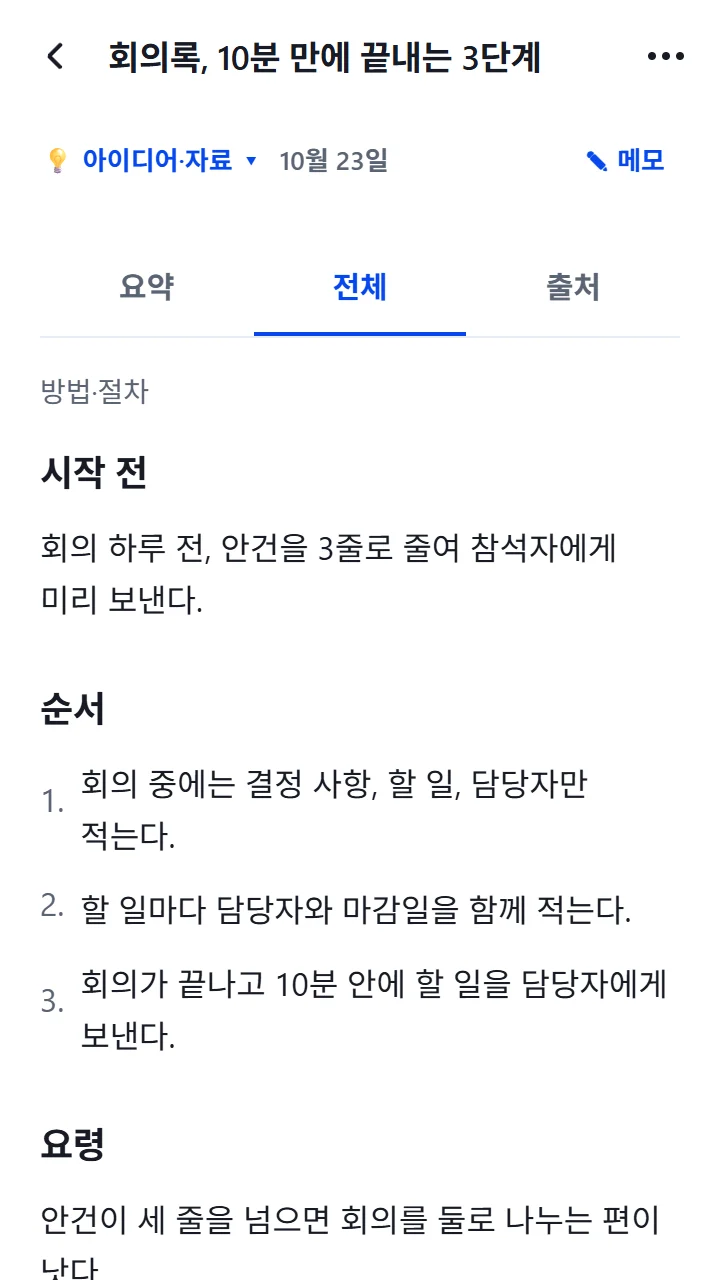
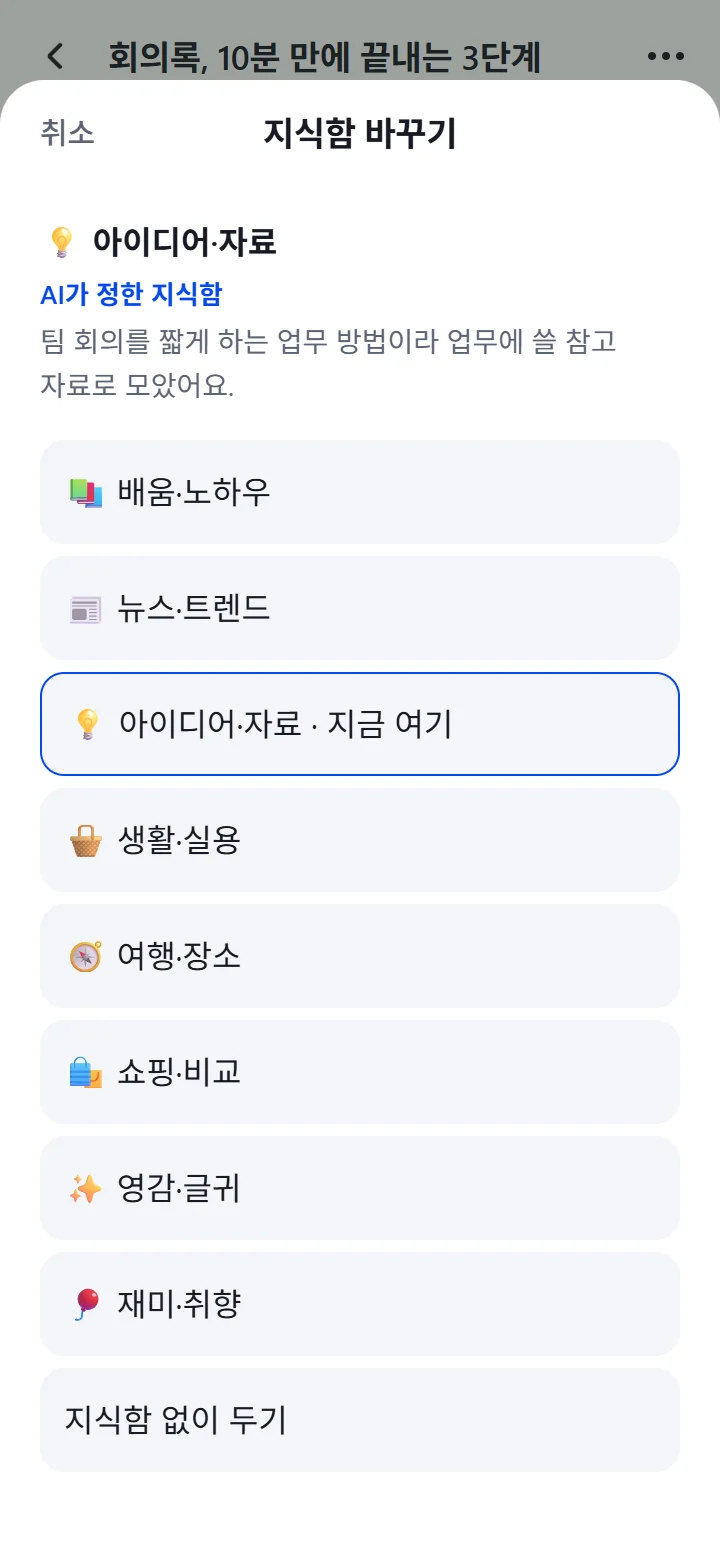
To change where it goes, tap the space name under the title, or pick “Change space” in the ⋯ menu at the top right. You can pick another space or “Keep without a space”. AI won't change a location you chose.
To change the title, pick “Edit title” in the ⋯ menu at the top right. Even after you save your own title, the original title stays in the “Sources” tab.
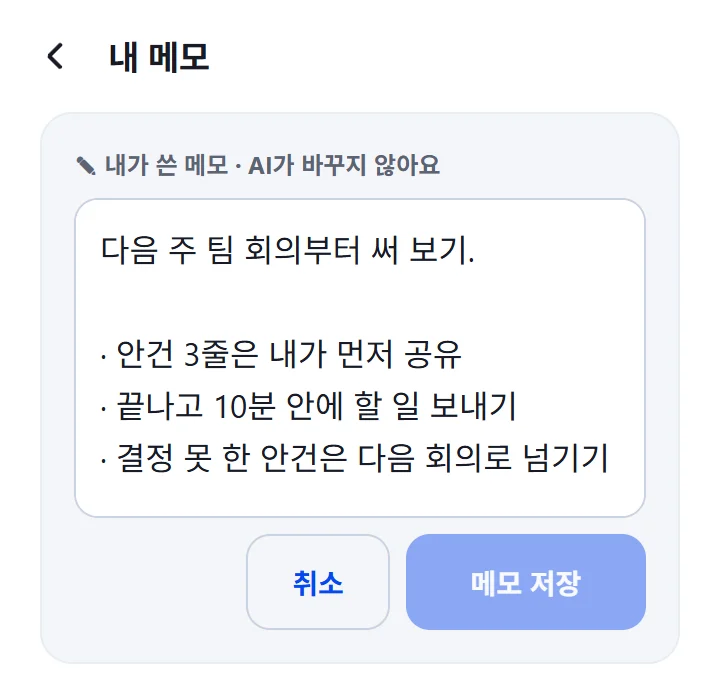
To add your own thoughts, tap “Note” under the title. AI never changes your notes, and they can be found by search too.
When it works, you'll see this
You see “Space changed” or “Removed from its space”, and for a title, “Title saved. The source title is unchanged”.
Good to know
If you just leave an article after saving it, AI finds a space whose purpose fits and puts it there. If that's hard to decide, AI leaves it without a space, and it never touches a location you chose.
If something goes wrong
Common situations
- “Waiting to be summarized” · “Organizing the content”
- The capture is done. You can close the screen.
- “Summarizing stopped” · “Not organized”
- Your article and notes are unchanged. Try tapping “Summarize again” on the detail screen.
- “Not enough budget to finish the summary”
- The processing limit has been reached. Your article and notes are unchanged, and you can organize it again once the limit opens up.
- Without an internet connection
- You can keep reading the saved copies. Save titles and delete things once you're connected again.