Export and delete
You can download your saved knowledge as a file anytime, and restore deleted knowledge within 30 days. Deleting your whole library and closing your account are handled by request.
Step by step
In “Settings”, open “Export to a file”.
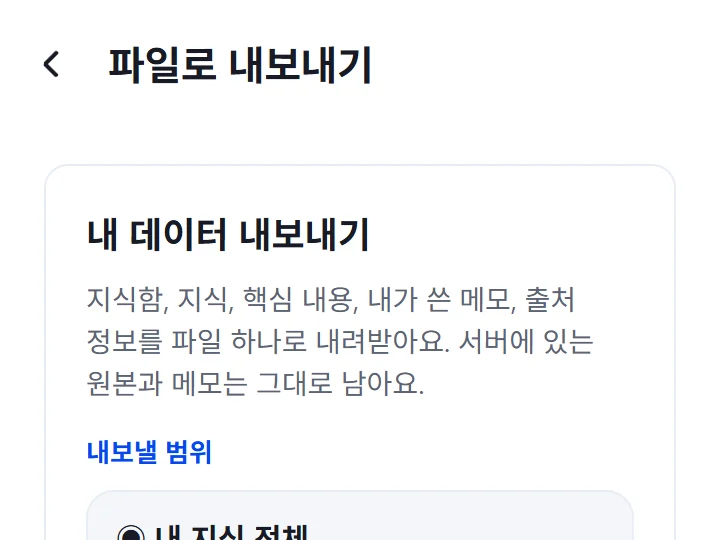
Under “What to export”, choose “All my knowledge” or a single space.
Under “File format”, choose “Document (Markdown)” or “Data (JSON)”. Document is good for reading in a notes app, and Data for moving to other tools. To also get the text of the originals you saved, turn on “Also include captured source text”.
Tap “Export to a file”, then choose where to save it in the share sheet.
When it works, you'll see this
You're done when you see “The export file was created. Choose where to save it in the share sheet.” The originals and notes on the server stay as they are.
Deleting and restoring knowledge
Open the article you want to delete and pick “Move to Trash” in the ⋯ menu at the top right.
You can see deleted knowledge in “Trash” under “Settings”. Within 30 days, “Restore” brings it back as it was, notes and evidence included.
To get rid of it right away, tap “Delete permanently…” and then “Confirm permanent deletion”. Permanently deleted knowledge cannot be restored.
After 30 days, it is deleted permanently. If the original space no longer exists, it is restored without a space.
Deleting your whole library and closing your account
To delete all the knowledge you saved or close your account, tap “See how to request account deletion” in “My account” under “Settings”, then make a request by following the “Support and account closure requests” guide. You can request deleting only your library separately from closing your account, and after confirming it's you, the operator tells you what will be deleted and how it will be handled.
If something goes wrong
Common situations
- “The content to export is too large, so no file was created”
- Try again with just one space, or without the original text. If you need everything, choose “Full export, even if it takes a while”.
- “You can export once the connection is ready”
- Try again once you are connected to the internet.
- “The file was created, but the share sheet cannot be opened on this device”
- The window for choosing where to save didn't open. Export again a little later.
- “The Trash can be shown once connected”
- The Trash shows only when you are connected to the internet, and restores or deletions are not scheduled on the device.