Read status labels
What the labels in the list and on the detail screen mean, and what to do when you see them, all in one place. Whatever label appears, the articles you saved and your notes are never deleted.
Step by step
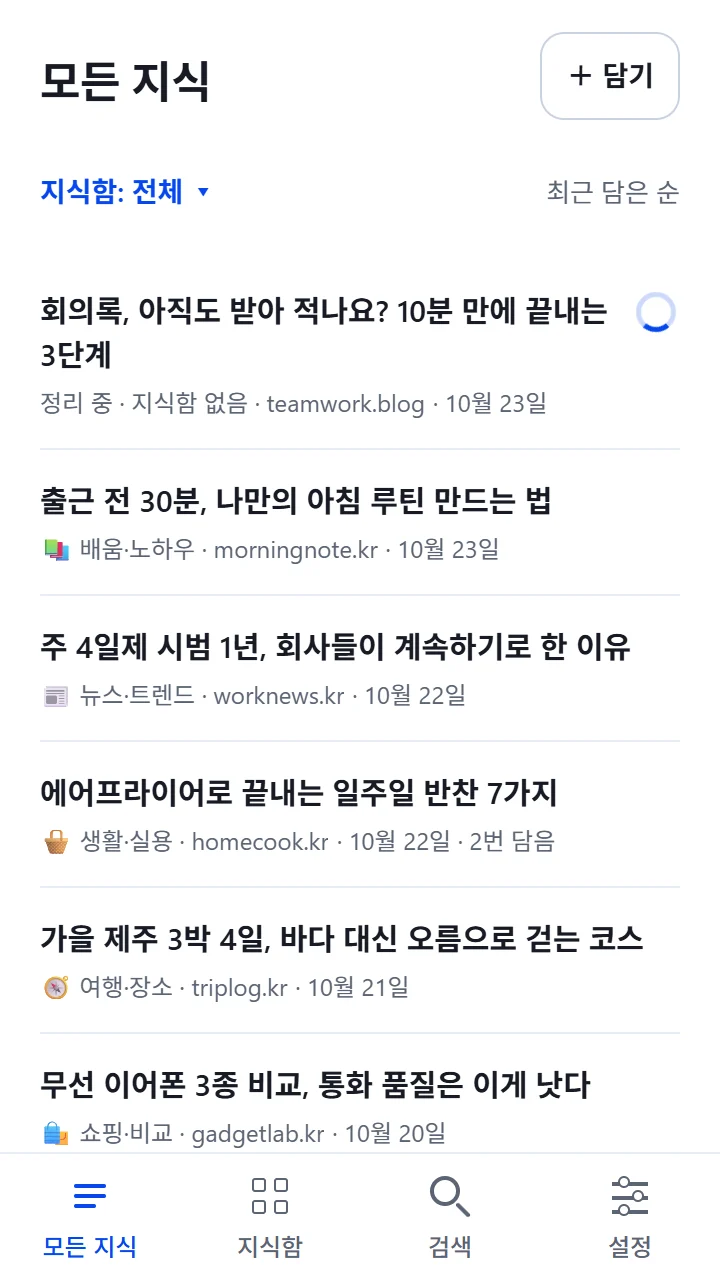
Look at the label next to an article in “All knowledge” or in a space's list. No label means the article has been organized.
If there is a label, open the article. Near the top, you see what happened and what you can do.
If organizing stopped and you see the “Summarize again” button, try tapping it (“Re-read the text” if the original needs to be read again). You are told what will change, and it starts only when you tap “Request summary”.
When it works, you'll see this
When the label disappears and key points show up in “Summary”, organizing is done. Even when it is organized again, sentences you edited, sentences you locked, your notes and the original stay as they are.
Labels in the list
- “Organizing”: The capture is done and organizing is underway. You can close the app.
- “Needs review”: Something in the organized result needs checking. Open the article and look at the marked part.
- “Not organized”: AI couldn't finish organizing. Open the article to see why and what you can do.
- “Sends once connected”: An article saved on your phone. It is sent to the server once you are online.
- “Needs a check”: A capture couldn't be confirmed as saved on the server. Check it in “Capture history” under “Settings”.
Labels when you open an article
- “Waiting to be summarized” · “Organizing the content”: The capture is complete. Organizing continues even if you close this screen.
- “Only part of the source was collected” · “Source partly acquired”: The site showed only part of the article, so only the fetched part was organized. You can open the original article from the “Sources” tab.
- “Some content has not been organized yet”: Part of the fetched original didn't make it into the organized result. The original stays as it is.
- “No knowledge to organize”: Nothing worth organizing was found. You can still see the sources and your notes.
- “Could not confirm the processing status” · “Please check the summary status”: Refresh to see the latest status.
If something goes wrong
Common situations
- “Not enough budget to finish the summary” · “Not enough budget to summarize again”
- The processing limit has been reached. What you saved and your notes are unchanged, and you can organize it again once the limit opens up.
- “Could not create a summary with enough source evidence”
- Organized results without solid evidence aren't shown. You can open the original article from the “Sources” tab.
- “The source could not be fetched”
- The site requires sign-in or blocks reading. The capture record remains, and you can open the link from the “Sources” tab.
- “The capture is complete, but the AI summary could not be finished”
- If you see the “Summarize again” button on the detail screen, try tapping it.