Save your first article
Put the article you're reading into 1234asdf with a single share, then open the organized result for the first time. It takes 5 minutes.
What you need
You just need to have the “1234asdf” app from Google Play installed on your Android phone and be signed in.
Not yet? Start by installing it and signing in. Get started ›
Step by step
In your browser or another app, open an article you want to read again and tap the share button.
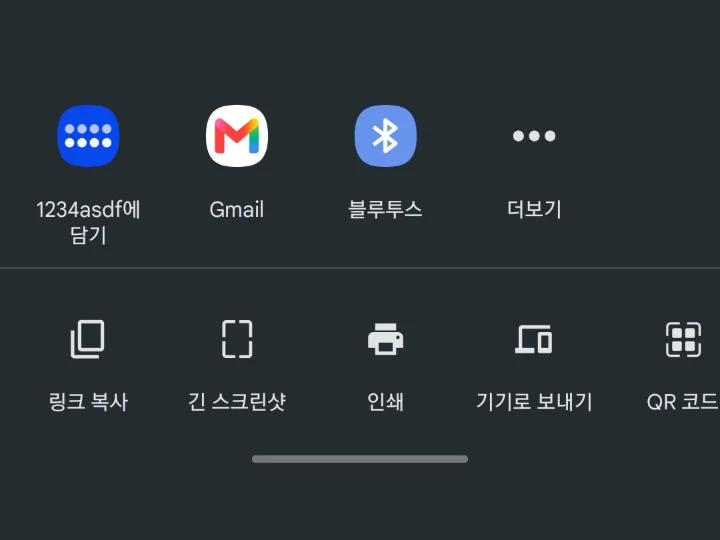
Pick “Capture to 1234asdf” in the share list. You don't have to decide which space it goes in right now.
When the “Saved on this device” notice appears, you're done. You can go back to what you were reading. The organizing carries on in the background.
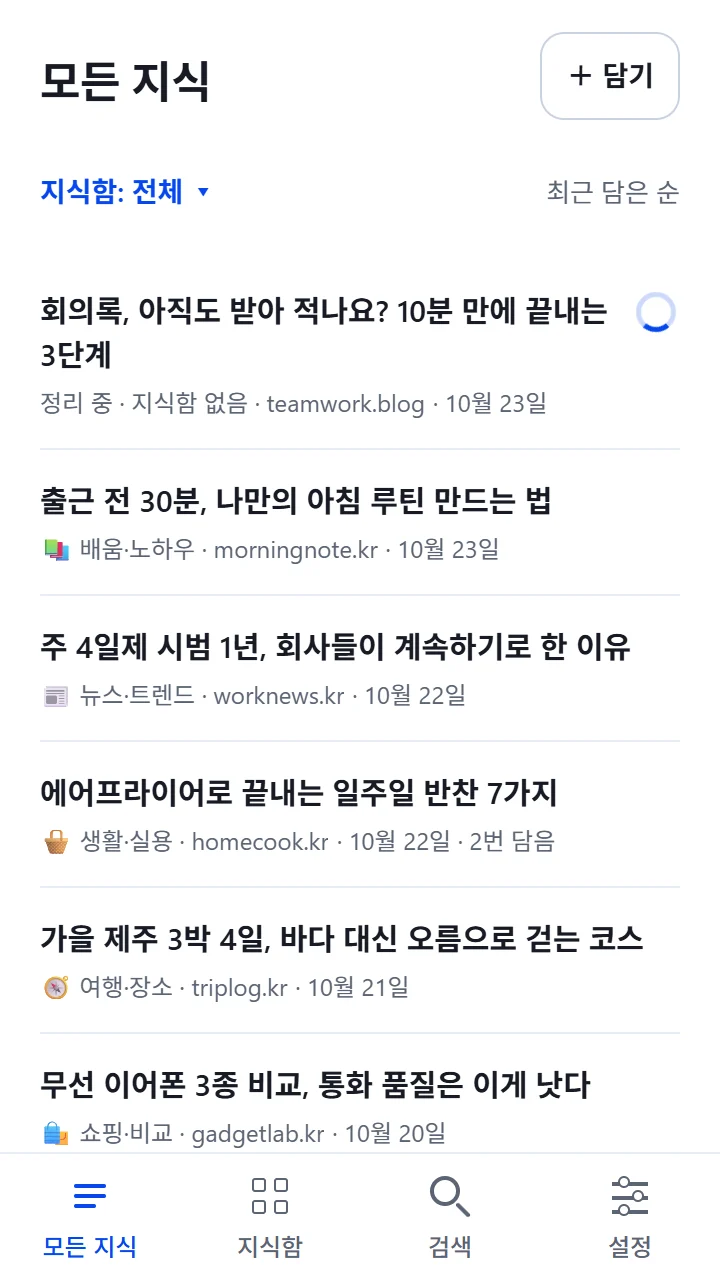
Open the app: the first screen is “All knowledge”. The article you just saved is at the top with the “Organizing” label, and the label disappears once organizing is done.
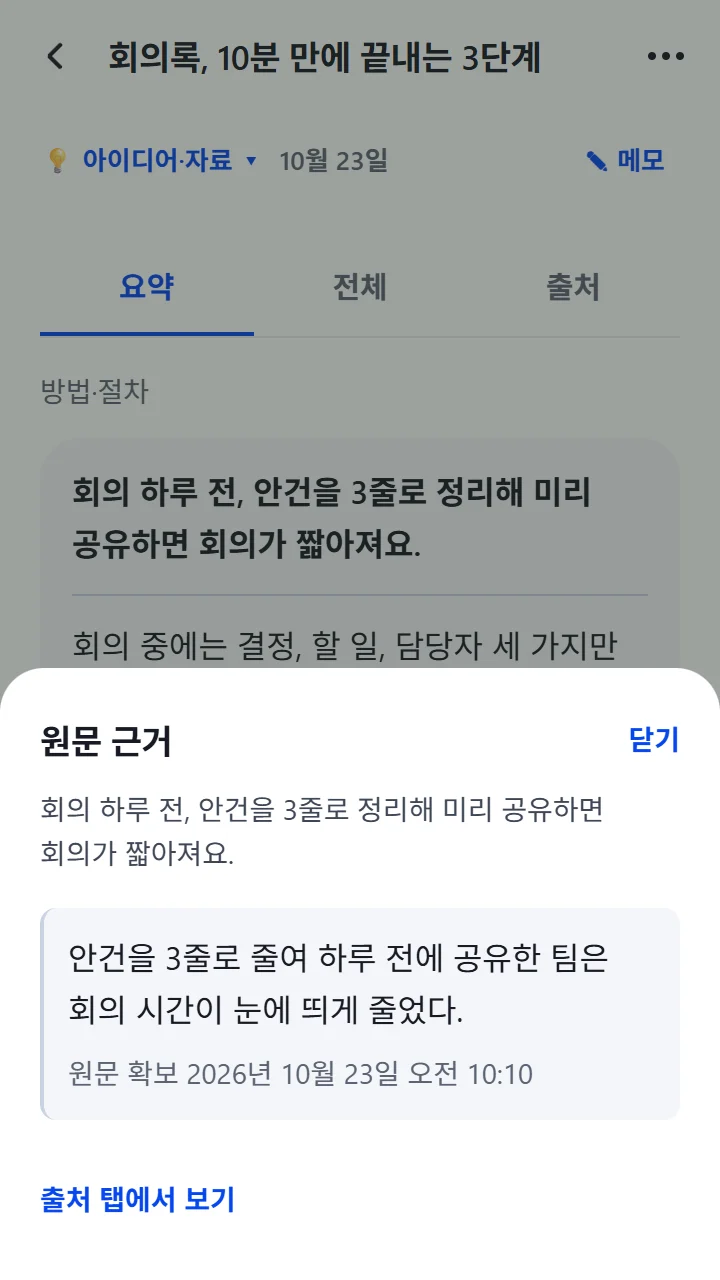
When you open the article, the “Summary” tab comes first. Tap any sentence and the “From the original” panel slides up, showing which passage of the original it came from. The original title and the link to the original are in the “Sources” tab.
When it works, you'll see this
When the “Organizing” label disappears, organizing is done. If you see “Source partly acquired” on the detail screen, the site showed only part of the article, so only that part was organized. What you saved stays as it is.
Save a link inside the app
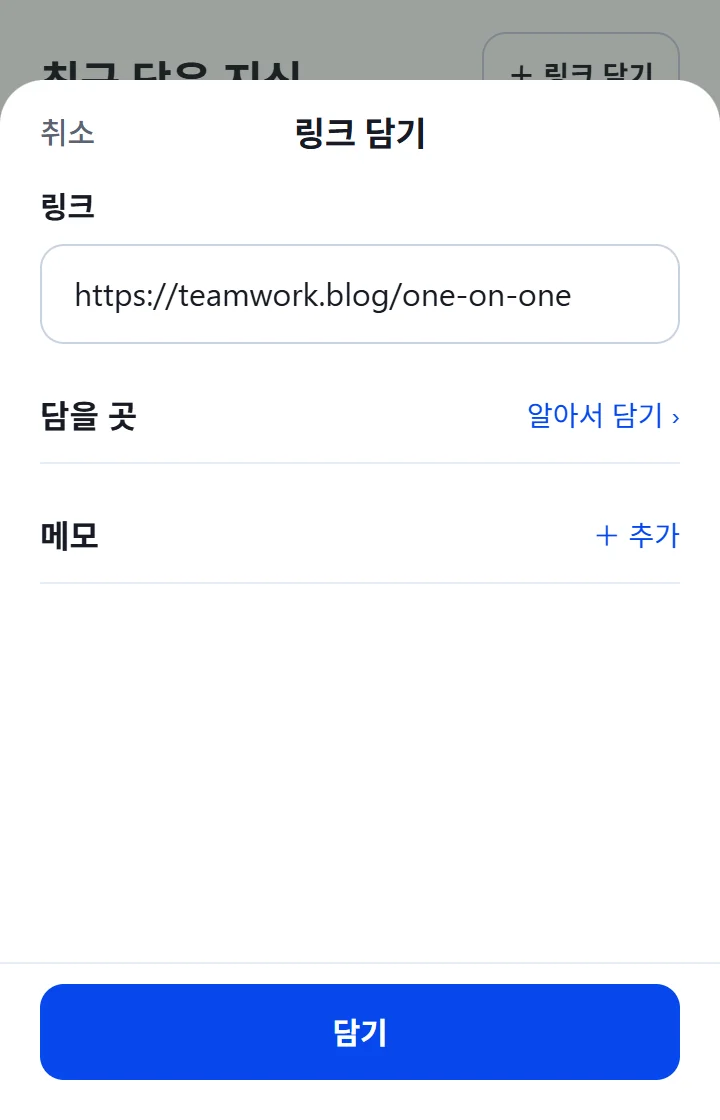
Tap “+ Save” in “All knowledge”, enter the link, then tap “Save”. The clipboard is read only when you tap “Paste”. You don't need to set “Save to” or “Note”.
If something goes wrong
Common situations
- “Saved on this device. Sign in in the app to send it”
- Once you sign in to the app, the articles you saved go to the server. They are already on your phone.
- “Please retry saving to the server”
- Check your internet connection, then open that capture in “Capture history” under “Settings” and tap “Retry the same capture”.
- “This sharing format cannot be captured”
- Share it again using the article's address (link). For now, links can be saved.
- “The source could not be fetched”
- The site requires sign-in or blocks reading. You can open it in your browser with “Open source ↗” in the “Sources” tab.