Save with the Chrome extension
Add the “Save to 1234asdf” extension to Chrome on your computer, and save the article you're reading with a single shortcut. It takes 3 minutes.
Last updated
What you need
You just need Chrome on your computer and a 1234asdf account. The extension's screens are in English.
Step by step
Add “Save to 1234asdf” from the Chrome Web Store.
Once it's installed, the “Start saving to 1234asdf” page opens. Click “Connect” to open the web version. Sign in, and when it asks “Connect 1234asdf saving to this browser?”, click “Connect”.
On the article you're reading, press Left Alt+S (Control+S on a Mac). A “Saving this page” card appears at the bottom right of the screen, and it saves on its own after 3 seconds.
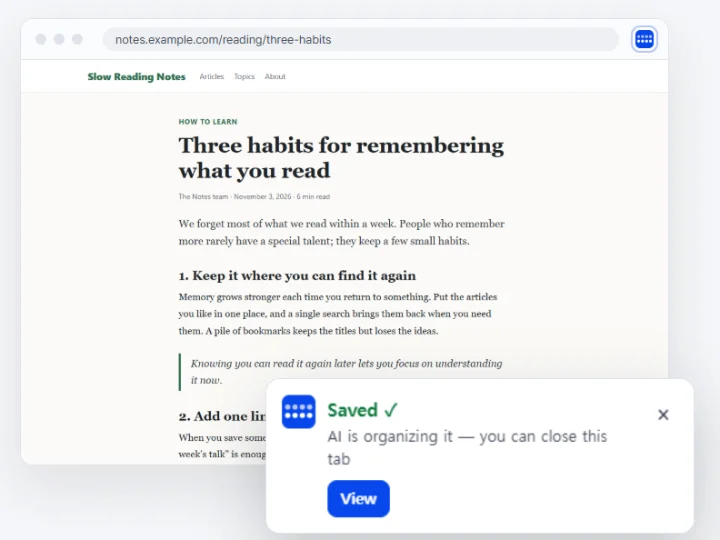
To leave a one-line note, click “Note” while the card is showing. When “Saved ✓” appears, you're done. Organizing continues even if you close the tab.
You can also right-click selected text and choose “Save to 1234asdf with the selected text”, or right-click a link and choose “Save this link”.
What gets sent
Only when you save does it send the page's address, title, selected text and the text visible on screen. That's why you can save even posts you can only see when signed in. Known mail, banking, payment and admin pages send the address only. Don't save other sensitive pages. If you don't want to send the page text, turn off “Include page text” in the extension's popup. The extension can only save; it can't read the knowledge you saved.
When it works, you'll see this
The card shows “Saved ✓”, and a moment later what you saved appears in “All knowledge” in the web version and the app.
If something goes wrong
Common situations
- “We will send it once you connect”
- This browser isn't connected yet. Click “Connect” on the card or in the popup to connect, and the saves that were waiting are sent.
- “This page cannot be saved”
- Browser settings pages, extension stores, new tabs and files on your computer can't be saved.
- “We will send it automatically in a moment”
- It was put off because of the internet connection or the server's status. Leave it as it is and it will be sent again.