Use it on a computer
Sign in to the web version on your computer, save articles and files, and read your organized knowledge on a wide screen. It takes 5 minutes.
Last updated
What you need
You just need a Google account and a browser on your computer. If you sign in with the same account as the Android app, the knowledge you saved on your phone shows up too.
Step by step
Open the web version (app.1234asdf.com) and sign in with “Continue with Google”.
Click “+ Save”, paste the article's link, then click “Save”. The organizing carries on in the background.
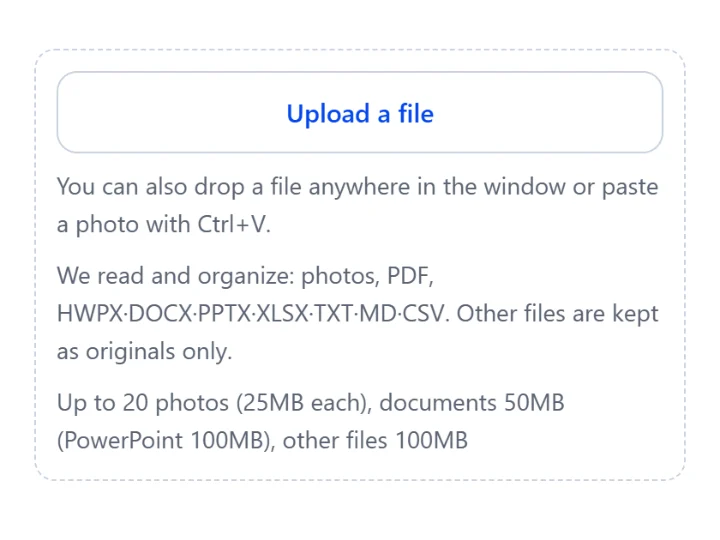
For photos, PDFs or document files, open “Files” in “+ Save” and click “Upload a file”, or drag the file into the window.
Open what you saved at the top of “All knowledge”. On a wide screen, you can read the list and the article side by side.
When it works, you'll see this
What you saved appears at the top of “All knowledge”, and the “Organizing” label disappears once organizing is done. The same knowledge shows up in the phone app too.
Files it reads and organizes
Photos, PDFs and documents such as Hangul, Word, PowerPoint and Excel are read and organized; formats it can't read are kept as the original only. Programs, installers, and audio and video files can't be saved.
For what it reads in each format and how to view originals, see Save photos, PDFs and documents ›
If something goes wrong
Common situations
- “Programs and installers cannot be captured”
- Program files aren't saved. Choose a document or a photo instead.
- “Audio and video cannot be captured yet”
- Audio and video files aren't saved. Save the article's link or a document instead.
- “Capture one file at a time, separately from photos and PDFs”
- Document files are saved one at a time. Photos can be saved several at once.